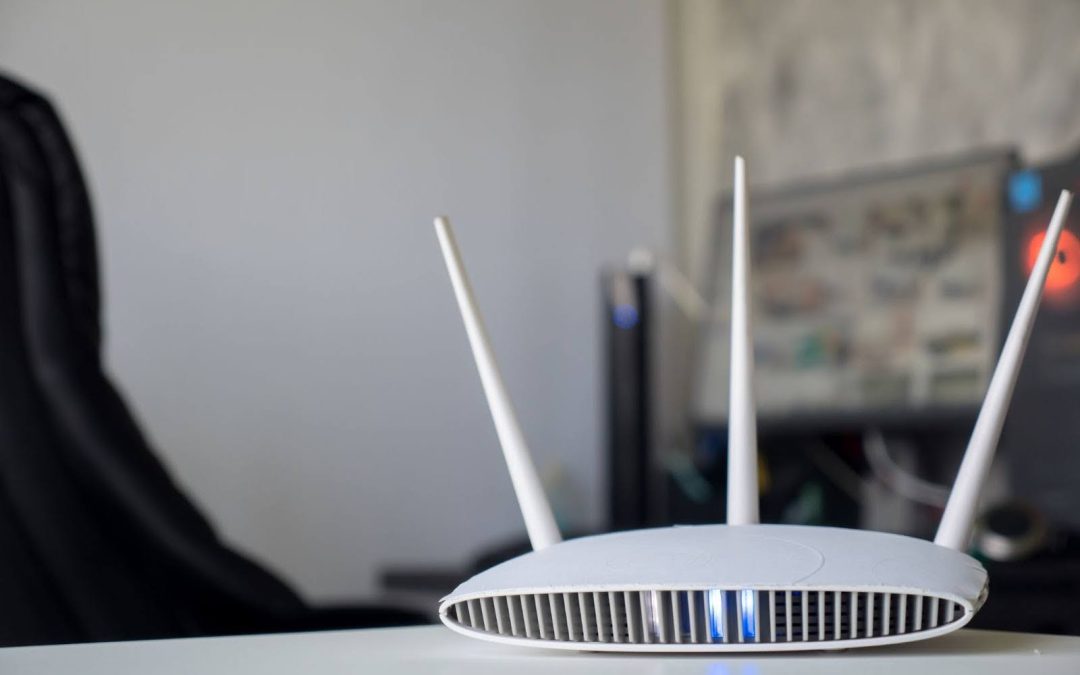
Your internet plan might promise fast speeds, but if your WiFi router isn’t in the right spot, you’ll never feel it. Slow loading, random disconnections, and weak signals in certain rooms are often caused by poor placement, and not your internet provider.
This guide breaks down what actually affects your WiFi performance and where to place your router at home for stronger, more stable coverage. You’ll learn the simple changes that make the biggest difference.
Need help with your WiFi? Reach out to Dr WiFi Singapore via WhatsApp, email, or our contact form for any enquiries!
What to Consider When Placing Your WiFi Router
Understand How WiFi Signals Work
WiFi is a radio frequency that travels through air in waveforms, not straight lines.
As those signals move, they weaken, especially when they encounter resistance like walls, ceilings, and metal surfaces. That’s why your connection might drop the moment you step into the next room.
Home routers typically use three frequency bands: 2.4GHz, 5GHz, and now 6GHz. Each comes with distinct traits that affect how far the signal reaches, how much data it can carry, and how sensitive it is to interference.
- 2.4GHz
- 2.4GHz operates over a longer wavelength. It travels farther and penetrates walls and solid materials more effectively.
- That makes it useful for general browsing, smart home devices, or areas far from the router.
- But it’s often crowded with devices like microwaves and neighbouring routers, leading to more interference and slower speeds.
- 5GHz
- 5GHz offers faster data transfer and more available channels, which reduces signal overlap.
- It’s suited for high-speed needs like streaming HD content, video calls, or gaming, especially in the same room as the router.
- However, its higher frequency limits its range and ability to pass through walls. You’ll notice performance drop-offs in rooms further away or behind multiple barriers.
- 6GHz
- The 6GHz band is faster, has wider MHz channels, and far less congested.
- It is perfect for future-proofing and ultra-demanding tasks like AR/VR, large file transfers, or working with multiple high-bandwidth devices.
- However, it’s even more sensitive to distance and obstacles. You’ll need a clear path, and devices that actually support it.
Keep in mind that even if your router broadcasts in 6GHz doesn’t mean your devices use it. Older hardware may default to 2.4GHz. Even newer ones may throttle speeds to conserve battery or due to chipset limitations. That’s why it helps to know which band your device connects to.
Central Location Is Key
To maximise signal coverage, place the router as close to the middle of your home as possible. That gives the signal room to spread evenly in all directions. Placing it at one end limits reach, leaving far areas with weaker or no connection.
Elevate the Router
Position the router on a raised surface, like a shelf or table at waist to eye level. Signals travel outward and slightly downward, so placing it on the floor wastes signal and increases obstruction chances.
Avoid Physical Barriers
Walls, thick furniture, mirrors, and metal surfaces block or scatter WiFi signals. Metal and mirrors reflect waves, causing dead zones. Thick walls and bulky furniture absorb signals, reducing reach.
Keep Away from Electronic Interference
Microwaves, cordless phones, Bluetooth devices, baby monitors, and TVs disrupt WiFi frequencies. Keep your router clear of these appliances to reduce signal dropouts.
Don’t Hide the Router
Avoid placing your router inside cabinets or behind furniture. Enclosed spaces block signals and trap heat, which can reduce performance or damage the device.
Be Mindful of Multi-Storey Homes
WiFi signals struggle to reach floors above or below. Use extenders, mesh WiFi systems, or position routers and nodes strategically on each floor for better coverage.
Use Router Antennas Wisely
Adjust antenna angles to optimise signal spread, especially in multi-floor homes. Angled antennas help direct signals horizontally and vertically.
Ensure Good Ventilation
Routers need space to stay cool. Avoid crowded or enclosed areas where heat can build up and affect performance.
Test and Optimise Placement
Use speed tests and WiFi analyser apps to find dead zones or interference. Move the router slightly and retest to find the best spot for your layout and devices.
Common Placement Mistakes to Avoid
- On the Floor: Blocks signal and increases obstructions.
- In a Cabinet or Behind Furniture: Signals are absorbed; heat can build up.
- In a Corner or One End of the House: Causes uneven coverage.
- Next to Electronics: Causes interference.
- Near a Window Facing Outside: Signal leaks out, wasting bandwidth and risking security.
- Behind Metal or Mirrors: Reflects and scatters signals.
- In the Kitchen: Metal appliances and microwaves cause heavy interference.

Bonus Tips for Specific Situations
If You Live in a Large or Multi-Storey Home
- Use a Mesh WiFi System: Creates multiple access points for seamless coverage.
- Place Nodes Strategically: Spread them across floors or far corners.
If You’re in a Small Apartment or Studio
- Centralise as Much as Possible: Even one good spot can cover everything.
- Avoid Wall Mounting If Walls Are Too Close: Signal may bounce awkwardly.
If You Experience Random Disconnections
- Update Router Firmware: Manufacturers fix bugs and improve stability.
- Switch WiFi Channels: Too many routers on the same channel cause congestion.
If You’re a Gamer or Streamer
- Use the 5GHz Band: Ideal for gaming and HD streaming.
- Connect via Ethernet: Best for stable, lag-free experience.
If You Work from Home
- Place Router Near Your Workspace: Prioritise your signal zone.
- Use QoS Settings: Prioritise work apps like Zoom or Teams.
If You Rely on Smart Home Devices
- Keep Smart Hubs Close: Especially if they use WiFi or Zigbee.
- Use Guest Network: Isolates IoT devices to protect your main network.
If You’re on a Budget
- Use a WiFi Range Extender: Inexpensive way to cover weak zones.
- Reposition Before Replacing: Smart placement fixes more than you’d think.
If You Still Have Dead Zones
- Install a Powerline Adapter: Sends internet through electrical wiring.
- Check for Hidden Interference: Doors, water tanks, and mirrors can block signals.
If You Share WiFi with Many Users
- Upgrade to Dual or Tri-Band Router: Manages multiple connections better.
- Limit Bandwidth-Hungry Apps: Control streaming and downloads during peak hours.
Conclusion
Improving WiFi signal strength involves making informed decisions based on how wireless signals behave in real environments. With the right setup, you’ll enjoy stronger, more stable connections that keep up with your work, streaming, and everyday needs.
Need help with your WiFi? Reach out to Dr WiFi Singapore via WhatsApp, email, or our contact form for any enquiries!